The problem:
Right now RTILA X only supports Local LLMs (GGUF) and OpenRouter for cloud models. There’s no way to connect custom OpenAI-compatible API endpoints. Services like GLM Coding Plan, Minimax, and Alibaba AI Coding Plan offer high quality models at very competitive prices, but users can’t plug them in.
This came up from a community member here: Using GLM/Minimax Coding Plan
The solution:
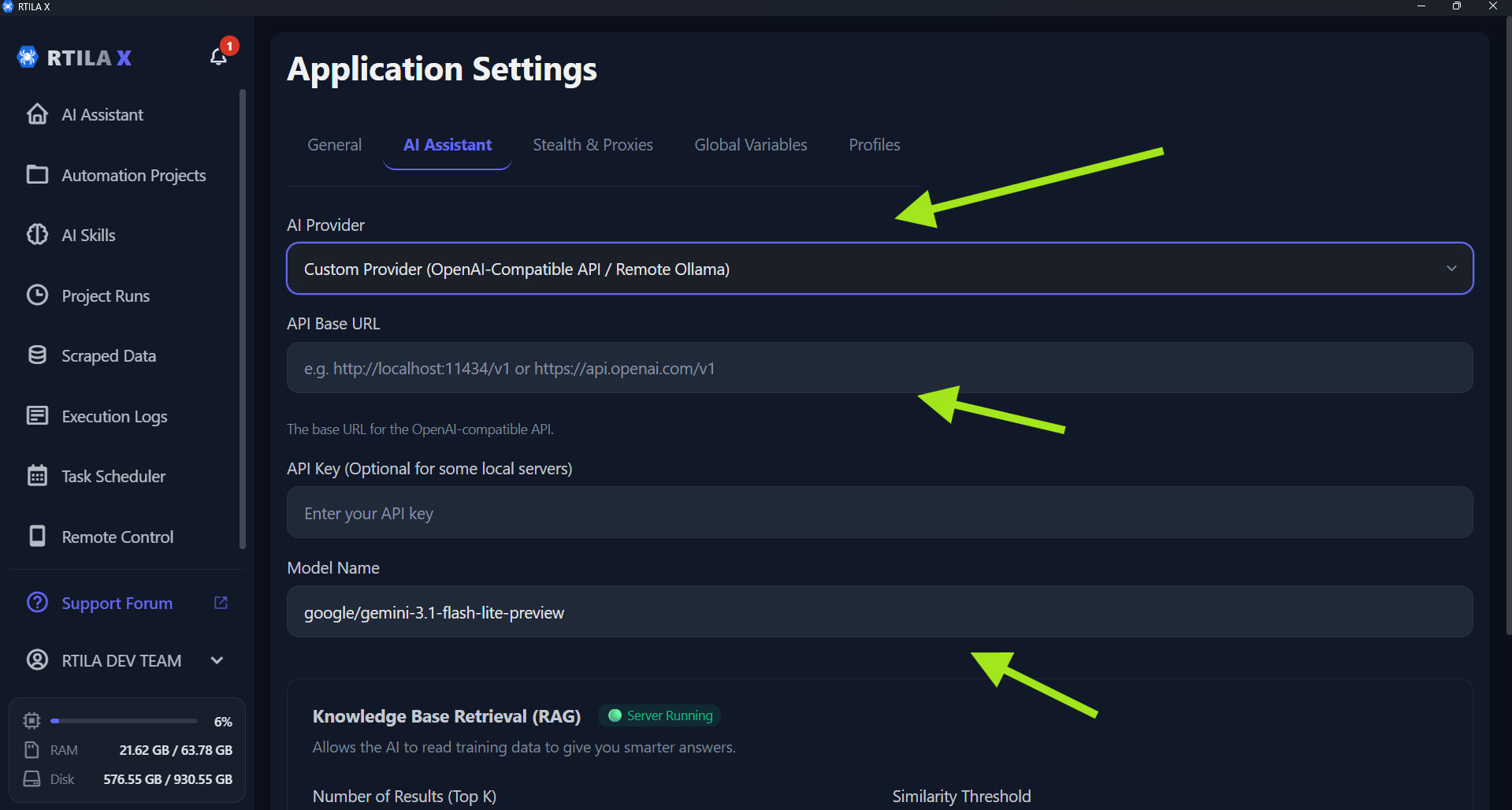
Add a “Custom Provider” option in the AI settings where users can enter a base URL, API key, and model name for any OpenAI-compatible endpoint. This way anyone can bring their own provider without waiting for official integrations.
Context:
GLM, Minimax, and Alibaba are offering frontier models for as low as $3/month. Many power users already have these subscriptions and would love to use them inside RTILA X.
Current workaround:
You can run GGUF versions of Qwen, DeepSeek, or Llama locally through our built-in engine at zero cost. We also have our own finetuned model for RTILA X workflows: rtila-corporation/rtila-assistant-lite-1.5 · Hugging Face
We’ve just pushed an update to RTILA X available here: https://github.com/rtila-corporation/rtila-releases/releases/latest/download/RTILA_Windows.exe that adds more flexibility for connecting to outside AI services.
Here is what is included in the new update:
1. Custom AI Providers
We’ve also added the ability to connect RTILA X to any custom OpenAI-compatible provider (such as a remote Ollama setup, GLM, Minimax, etc.).
In the Assistant Tab, you can now select a “Custom Provider” option. From there, just enter your Custom Base URL, Model Name, and API Key (the API Key is optional, as setups like local Ollama often don’t need one). (See attached Image 1)
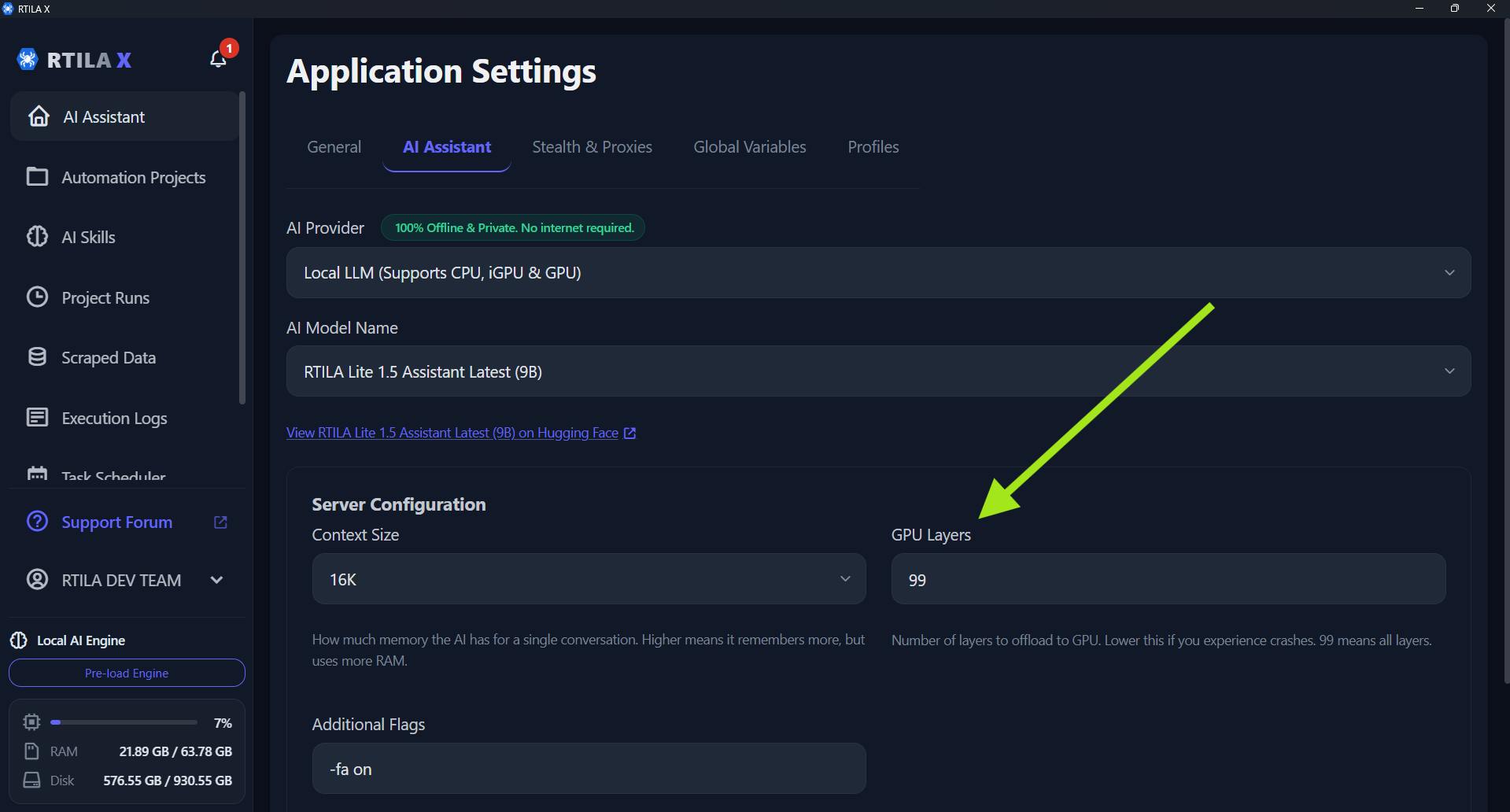
2. Fix for Model Crashing (GPU Layers Control)
If you were experiencing errors or crashes when loading local AI models (due to graphics card memory limits), you can now manually adjust how much of the model goes to your GPU.
How to fix the crash: Go to Preferences > Assistant Tab. You will see a new GPU Layers setting (which defaults to 99). If a model is crashing your system, simply lower this number (try starting around 20 or 30). This safely shifts some of the workload off your graphics card and onto your computer’s regular RAM so it can load successfully. (See attached Image 2)