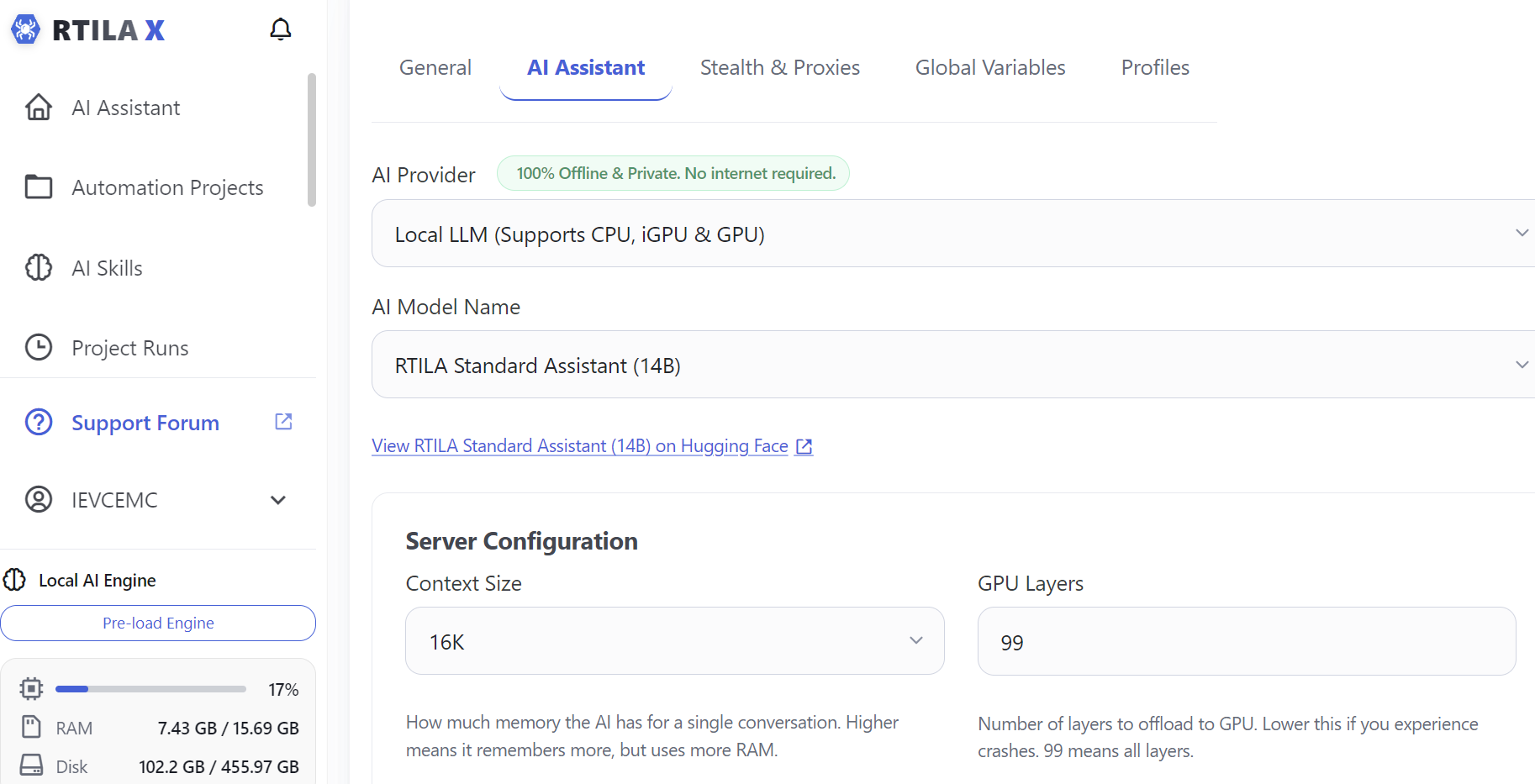
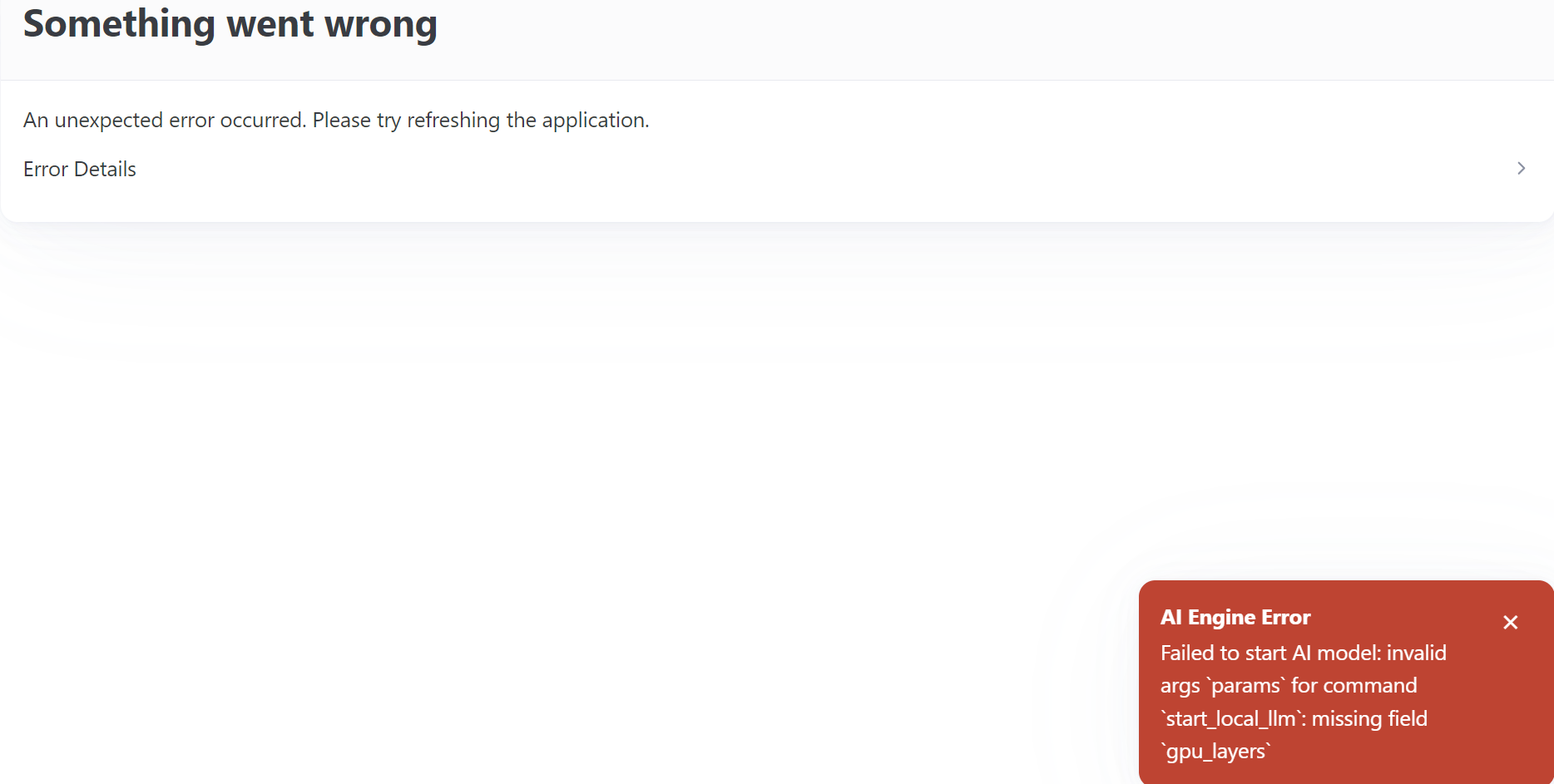
Hello @CommunityManager and @RTILA_Support ,
I am reaching out for some assistance regarding an update question and a license activation error I encountered while troubleshooting.
Background & Troubleshooting Steps:
-
Initially, I was unable to launch or install RTILA AI and kept receiving errors, even after trying with an OpenRouter API key.
-
To resolve this, I uninstalled RTILA X entirely, deleted the setup .exe file, and downloaded a fresh Windows version of RTILA Studio v8.1.2.
-
This worked perfectly! I initially skipped the update prompt so I could test the RTILA AI, and I was able to load it and have a successful conversation.
Issue 1: Updating RTILA Once I confirmed everything was working, I tried to run the update to the newest version from within the software. However, the update failed and instructed me to download and install it manually.
- Question: If I manually download and run the new installer, will it cleanly update my existing v8.1.2 installation, or will it create a separate, duplicate Studio instance alongside the one I already have?
Issue 2: License Deactivation When I completely uninstalled my first attempt, I forgot to deactivate the license on that instance. Your system currently shows I have 3 machines active, but I only have 2 in use.
- Question: Could you please assist me with deactivating that ghost machine so my license count is accurate again?
Thank you in advance for your help!
Hi,
Thank you for reaching out and for your continued support!
Regarding your license issue, I have manually removed the previous “ghost” machines from our system. Your license count should now be accurate. Please try it out and confirm if everything is looking good on your end!
As for the update, running the manual installer will cleanly update your current installation without creating a duplicate. You can go ahead and download the latest 8.2.223 patch directly from this link: https://github.com/rtila-corporation/rtila-releases/releases/latest/download/RTILA_Windows.exe
If you face any issues with the 8.2.223 version, please take a screenshot of the error and share it here so we can help you out.
Let us know if you need anything else!
I checked and it looks right, thank you – I will download the file and install it manually. will let you know if everything works as it should. 
Hi CommunityManager,
Thanks again for clearing up the license issue — everything looks correct on my end now, appreciate the quick help.
I went ahead and downloaded the 8.2.223 patch and attempted a manual install. During the installation process, I ran into an error related to “RTILA database.exe” not being found or not installing properly. I tried clicking the “Retry” button several times, but the same error kept appearing. Eventually, I selected “Ignore,” and the installation was able to complete.
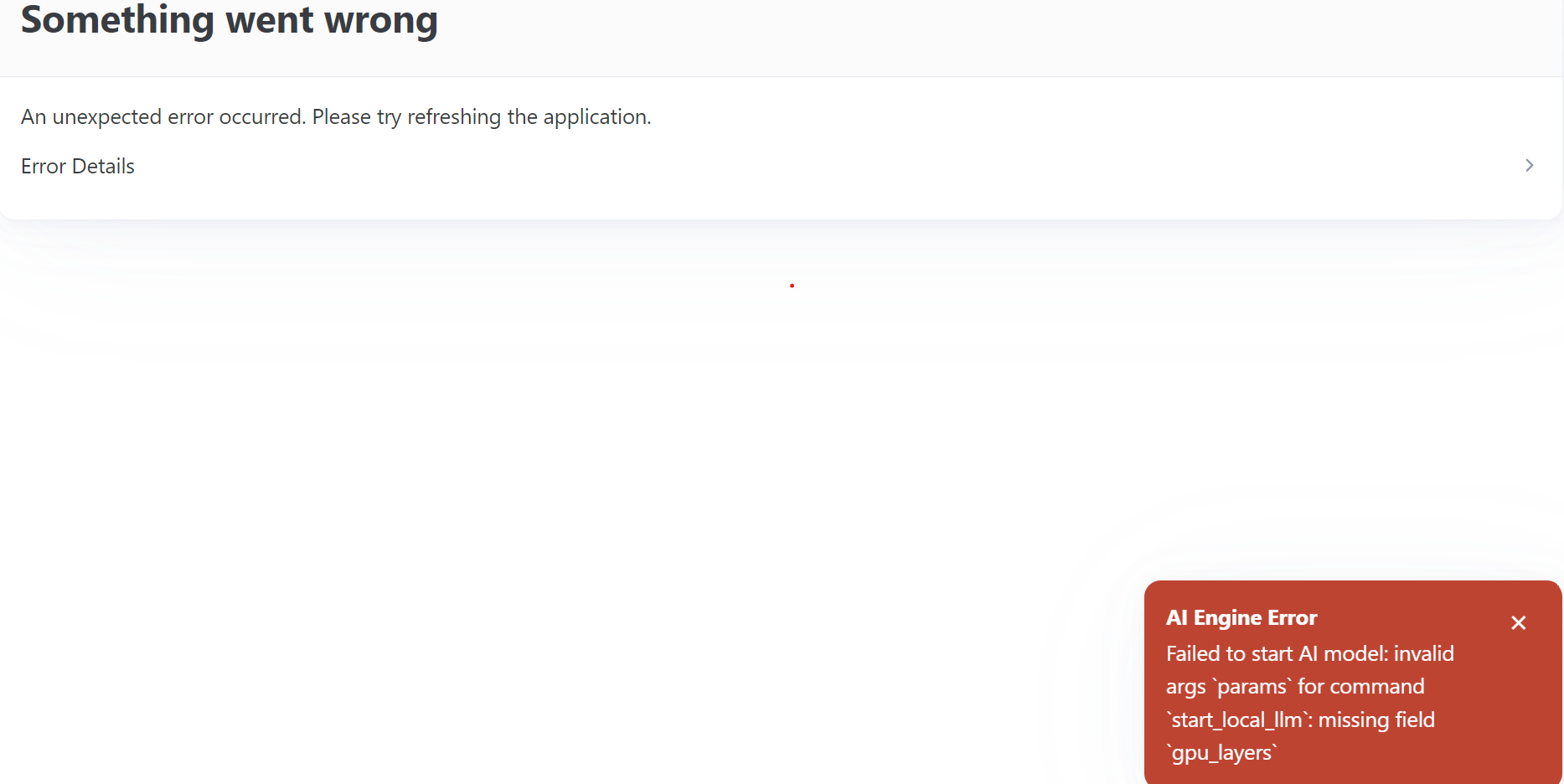
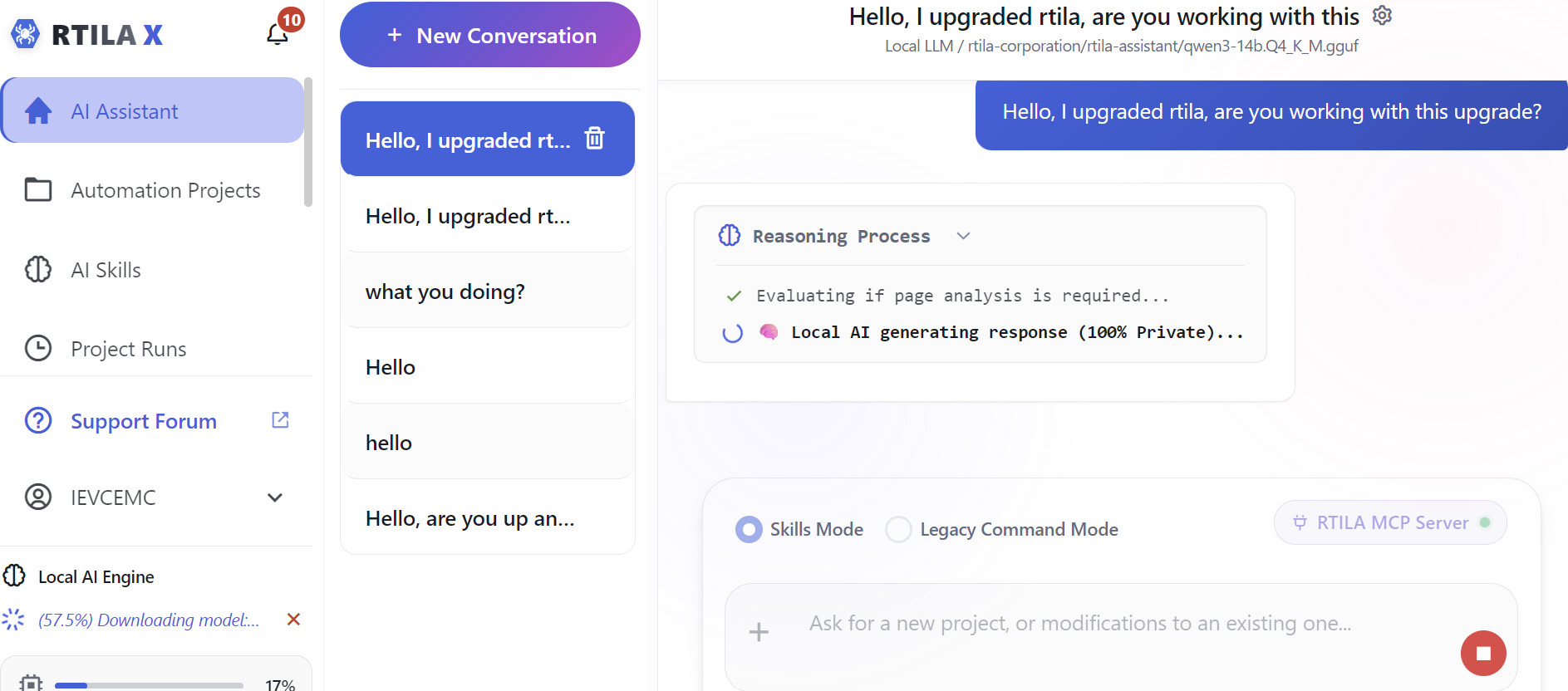
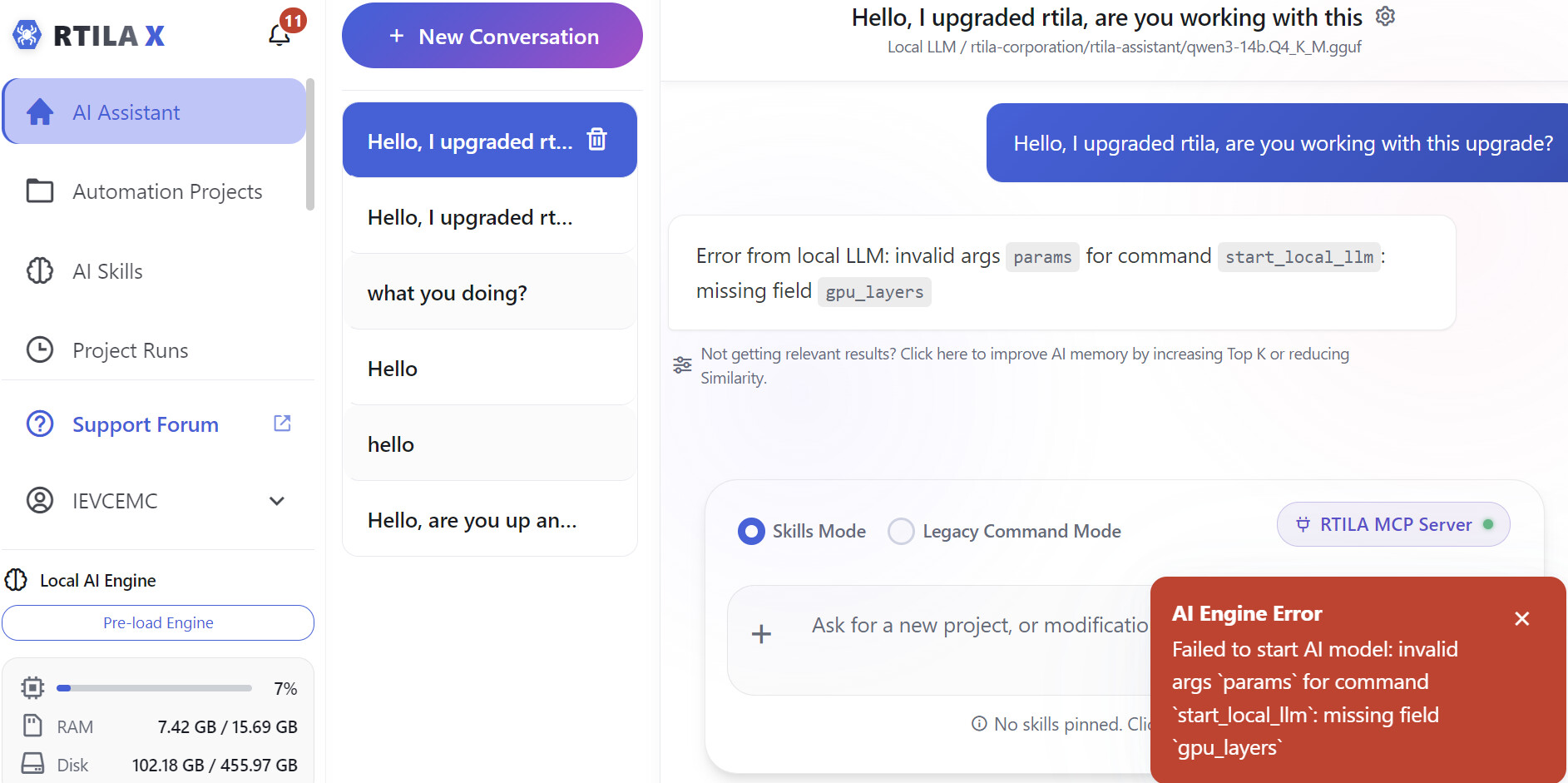
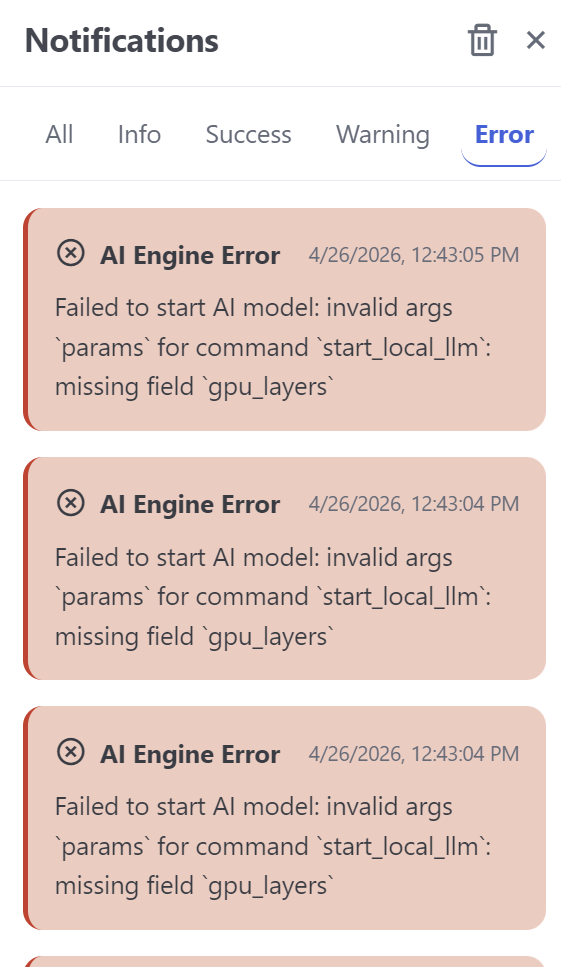
After setup finished, the main program seems to be working fine. However, when I try to install the local AI engine, I consistently get error messages and the installation doesn’t go through.
I’ll upload screenshots of the errors (if the forum allows) so you can review them more closely.
In the meantime, could you advise:
-
Should I be concerned about the earlier “RTILA database.exe” error even though the main install completed?
-
Could that issue be related to the AI engine installation failure?
-
Would you recommend doing a clean uninstall and reinstall instead of updating over the existing version?
Let me know how you’d like me to proceed. Thanks again for your support!
Hey IEVCEMC,
Thanks for the detailed feedback! Those screenshots were a huge help and thanks to them, we caught the bug and were able to reproduce it on a similar setup.
To answer your questions directly:
What you ran into is a classic Windows file-lock error. When you ran the installer, the main app was closed, but background processes (like rtila-database.exe and rtila-engine.exe) were secretly still running. Windows locks active files, so our NSIS installer couldn’t overwrite them, which triggered that “Abort/Retry/Ignore” prompt.
Because those files were bypassed when you clicked “Ignore”, it absolutely caused your AI engine installation to fail afterward.
As for doing a clean reinstall? You don’t need to. We’ve already added a fix to prevent the installer from having these file-lock issues. We bundled the fix into a minor 8.2.3 update which you can download https://github.com/rtila-corporation/rtila-releases/releases/download/v8.2.0/RTILA_8.2.3_x64-setup.exe. Just run that update and it will sort everything out.
Once you’re up and running, I definitely invite you to try out RTILA Lite 1.5 Assistant 9B. It’s our newest and most capable local model right now.
Let me know if the patch clears everything up for you.
@CommunityManager !! it worked!! thanks for the support and suggestion of AI to use… I will be working on this and create my first project.
Great! Thank you for your feedback. I would be happy to assist you with your first project. Please don’t hesitate to share your ideas, and I will gladly help you set it up.